>
New Topic
>
Reply<
Esato Forum Index
>
Sony Ericsson / Sony >
Android
> Xperia 1 VIII
Bookmark topic
Maratonmannen Online Posts: > 500
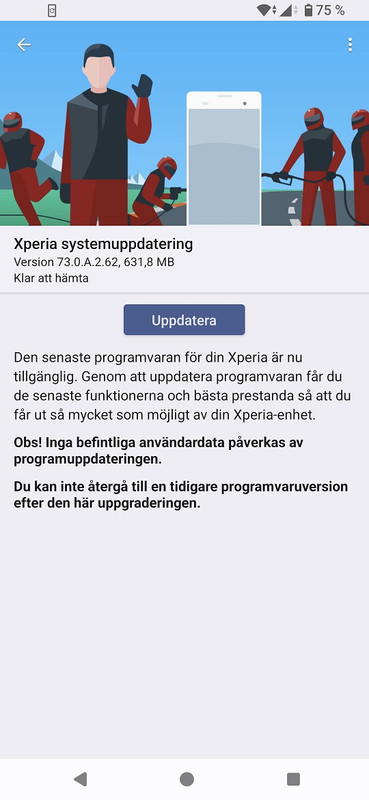
New system update. 73.0.A.2.62
August security patches.
[ This Message was edited by: Maratonmannen on 2026-08-17 07:24 ]
--
Posted: 2026-08-17 08:21:54
Edit :
Quote
Just installed mine.
--
Posted: 2026-08-17 13:42:42
Edit :
Quote
Nice.
I haven't gotten a notification yet, but when I do, I'll flash it manually since the automated update will rewrite my modded modem files.
--
Posted: 2026-08-17 14:42:11
Edit :
Quote
Maratonmannen Online Posts: > 500
On 2026-08-17 08:21:54, Maratonmannen wrote:
New system update. 73.0.A.2.62
August security patches.
The update wasn´t for my Japan version.
Since friday last week I have a new phone @work. The EU version of Xperia 1 VIII XQ-GE54 Nativ Gold 16GB/1TB.
Provider: Telia Sonera. Not my choice, but the employer's.
One of the differences compared to the Japanese version upon initial startup was that I had to choose a browser. There was a list of more than 10 web browsers. I chose Chrome.
Another difference was the number of pre-installed apps. Somewhere between 20 and 30 fewer apps.
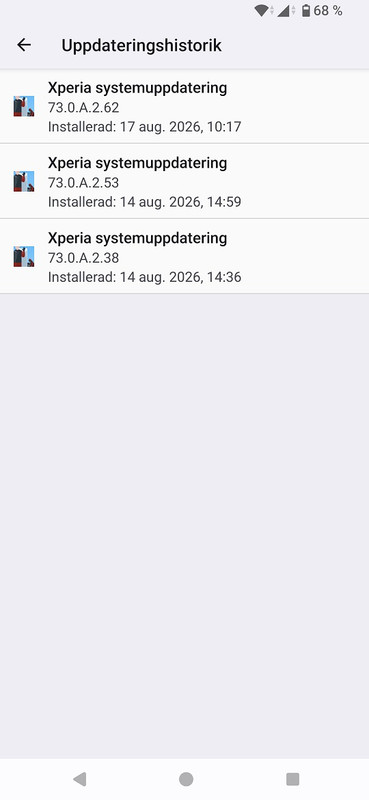
3 updates since friday.
--
Posted: 2026-08-17 14:51:16
Edit :
Quote
The provider phone has 20-30 fewer apps? I would have imagined the opposite. I'm not surprised there are software modifications otherwise. Choosing a browser is probably an EU requirement based on their antitrust case against Google. That's why you don't see it on the Japanese version.
My japanese version didn't have many apps installed and I chose not to install all the google apps upon initial setup.
I'm kinda surprised a company would choose an Xperia as a work phone. That's pretty awesome.
--
Posted: 2026-08-17 14:58:15
Edit :
Quote
Yes normally the opposite is true - complaints about bloatware used to be common. That's a nice work phone to have. I'm slowly moving away from GMail and Google apps and looking into EU equivalents. I already have a ProtonMail account.
Of course things like GoogleMaps have no decent alternatives, yet.
--
Posted: 2026-08-17 15:16:14
Edit :
Quote
I'm doing the same with google apps.
I still use gmail but I have all the AI features turned off. I use self hosted apps and services for most of "office" type tools, note taking, and such.
I'm not happy about google training their AI on all my data. Next thing up is I want to self host a location history tracker so I can turn that off with google as well.
It's a shame the US govt isn't taking antitrust more seriously these days. There are several companies that need to be broken up but unfortunately, it's those same companies who essentially own the politicians.
--
Posted: 2026-08-17 15:25:03
Edit :
Quote
Maratonmannen Online Posts: > 500
On 2026-08-17 03:28:07, moogoo wrote:
@tai
I had a minute and was able to turn on the option to only scan for a finger print after the power button is pressed. Very easy.
Here's my "dummy" guide.
Install the drivers and SDK suite. Follow the directions to install the driver at the links.
Google USB drivers
https://developer.android.com/studio/run/win-usb (this is for windows)
Android SDK
https://developer.android.com/tools/releases/platform-tools
Enable developer options on the phone
1. go to SETTINGS > ABOUT PHONE
2. Scroll down to the firmware version and tap it 7 times until developer options are enabled.
3. go to SETTINGS > SYSTEM > DEVELOPER OPTIONS
4. Enable USB DEBUGGING.
Connect your phone to your computer and unlock it.
1. Verify your phone is recognized by the computer in windows device manager. (search for it in the start menu)
2. Look for PORTABLE DEVICES and expand it. Your device should be listed.
3. If your device is not listed, check to see if is listed as something else with an error icon. If this is the case, you will need to disable driver signature enforcement. Go to your windows SETTINGS > SYSTEM > RECOVERY > ADVANCED STARTUP and click RESTART NOW. When your computer reboots to a blue screen you will see options. Select "Disable Driver Signature Enforcement". The computer will boot up into windows as normal.
4. Connect your phone again, unlock, and check the device manager again. It should be detected as described above. If not, you will need to manually update the driver for the device that has the error icon and select the driver you downloaded above.
Use adb
Once your phone is connected and recognized, you can use adb.
1. search for command prompt in start. when it shows up, right click and select RUN AS ADMINISTRATOR
2. In the command prompt, change directory to the directory where you saved the SDK. The directory should have an executable called adb.exe inside.
3. Now run this command exactly: adb shell settings put secure somc.disable_fps_screen_off 1
4. Your phone probably pop up a prompt to allow connection to the computer. click ALLOW
5. If the command prompt says "adb.exe: device unauthorized" even after you click ALLOW, just run the command again.
6. The command will execute and you will be returned to the prompt with no other notifications.
7. At this point the feature to enable the fingerprint scan after pressing the power button will be enabled.
If you ever want to enable the always on fingerprint scanner, open the command prompt again via administrator and run the above command again but replace the "1" at the end with a "0".
Once done, you can disable USB debugging in the developer options again, if you want. I do it, just for security reasons.
QUESTIONS?
I didn't have time to take screenshots and post them and link them all here, so hopefully you can follow along with what I wrote. If you have questions, let me know! I think the hardest part is making sure your phone is recognized when connected to your computer.
Good luck!
Can anyone explain for me what this operation is good for?
When I press the power button the lock screen appears and I can login in with my PIN.
That´s the way I am used to and I want to keep going with.
--
Posted: 2026-08-17 15:57:19
Edit :
Quote
@maratonmannen
If you don't use the fingerprint scanner to unlock your phone then my guide is mostly irrelevant. You can follow the guide to setup adb though. Using adb, you are able to enable/disable things that you normally wouldn't be able to do on the phone itself.
Out of the box, the fingerprint scanner will "buzz" every time it detects some type of skin contact. It doesn't matter if the screen is off. So, this detection can happen in the pocket by accident or anytime you pick up your phone. It will detect something and try to read it. If it's a registered fingerprint, the phone could unlock even though you did not want to unlock.
Enabling the scanner to only scan after the power button is pressed (when in a locked state) ensures that you are controlling when it scans.
As I said, if you only use pin to unlock then this feature is not relevant.
--
Posted: 2026-08-17 16:36:28
Edit :
Quote
On 2026-08-17 03:28:07, moogoo wrote:
@tai
I had a minute and was able to turn on the option to only scan for a finger print after the power button is pressed. Very easy.
Here's my "dummy" guide.
Install the drivers and SDK suite. Follow the directions to install the driver at the links.
Google USB drivers
https://developer.android.com/studio/run/win-usb (this is for windows)
Android SDK
https://developer.android.com/tools/releases/platform-tools
Enable developer options on the phone
1. go to SETTINGS > ABOUT PHONE
2. Scroll down to the firmware version and tap it 7 times until developer options are enabled.
3. go to SETTINGS > SYSTEM > DEVELOPER OPTIONS
4. Enable USB DEBUGGING.
Connect your phone to your computer and unlock it.
1. Verify your phone is recognized by the computer in windows device manager. (search for it in the start menu)
2. Look for PORTABLE DEVICES and expand it. Your device should be listed.
3. If your device is not listed, check to see if is listed as something else with an error icon. If this is the case, you will need to disable driver signature enforcement. Go to your windows SETTINGS > SYSTEM > RECOVERY > ADVANCED STARTUP and click RESTART NOW. When your computer reboots to a blue screen you will see options. Select "Disable Driver Signature Enforcement". The computer will boot up into windows as normal.
4. Connect your phone again, unlock, and check the device manager again. It should be detected as described above. If not, you will need to manually update the driver for the device that has the error icon and select the driver you downloaded above.
Thanks a lot Moogoo! I finally managed to do it (with youtube help as well


) for both 1VIII and 10VII! One gripe though - The feeling with what Xperia programmed was a little different: Theirs you can press and keep your finger on the fingerprint sensor and it will read and unlock phone. For this version, I need to remove my finger and touch the sensor again to unlock instead of just keeping my finger rested on the sensor to unlock. But still its good!


I used this site as assistance as well
https://www.youtube.com/watch?v=GERlhgCcoBc
And BTW
https://sumahodigest.com/?p=67727[ This Message was edited by: tai020381 on 2026-08-17 16:17 ]
--
Posted: 2026-08-17 17:15:33
Edit :
Quote
New Topic
Reply
